- 01Overview and the core idea02
- 02How it works03
- 03Installation and authorization04
- 04Interface tour: Sum editor05
- 04BCell Edit walkthrough06
- 05Interface tour: Send editor07
- 06Parameter reference08 to 09
- 07The grid and frequency axis in depth10
- 08Workflows11
- 09FAQ and troubleshooting12
- 10License and contact13
01 · Overview
Automatic space, carved only where tracks actually collide
GreatWallOfSound ships as a pair. A Send sits on each source track and publishes that track's signal to the Sum. The Sum compares up to eight track rows and decides, per frequency band and per stereo side, which track ducks which.
Nothing is ducked wholesale. A bass and a kick only fight in the low end, so only the low band moves; the rest of both tracks stays untouched. The result is automatic mix separation that follows the material instead of a fixed sidechain routing.
In one line
Give each track a priority per frequency band and stereo side, choose which groups may interact, then click a cell to shape its floor and timing while watching its live levels. Higher priority ducks lower priority only inside the permitted groups.
Five ideas explain almost everything: the Send and Sum pair, priority order, group permission, the retained-level floor, and the selected cell's timing.
01A Send on every track, the Sum on a silent utility
Drop a Send on each track you want the Sum to see, up to eight, and give every Send a unique Sum Track. Each Send publishes pre-duck audio and applies the gain returned by the Sum. Put GreatWallOfSound Sum on a dedicated silent utility bus and do not route source audio into it. The pair communicates through shared memory; the source tracks keep their normal mix routing.
02The grid: tracks × band × side, with a z-order number
The Sum analyzes published audio in 1 to 8 frequency bands, each shown as two columns, Left and Right, so the grid runs up to 16 columns wide by 8 track rows deep. Every cell holds a z-order number from 0 to 8:
Left to right: an exempt cell (never ducks, never ducked), an idle cell holding priority 4, and a cell at priority 7 actively ducking a lower-priority track in that band.
0 is exempt: that cell never ducks anything and is never ducked. Any other value places the track in a hierarchy for that band and side: a higher z-order ducks a lower one; tracks that share the same z-order never duck each other. Because this is set per band and per side, one track can win the low end while losing the top end to another, all at once.
03Groups decide who is allowed to interact
Each Send can join any of eight named groups. Normal ducking requires the two rows to share at least one checked group. Override is directional: it lets that Send duck tracks in other checked groups, but its own checked groups still decide which ordinary Sends may duck it. A Send with no checked groups cannot be ducked. With Override off it is isolated; with Override on it can still duck grouped tracks.
04Cell Edit shapes the cut and the motion
Clicking a cell safely selects it without changing its sound. The grid is selection-only: cell values can only be changed in the dedicated Cell Edit panel, which exposes Z Order, Gate Floor, Attack, Release, and live input, trigger, and post-duck levels. A 70% floor means the cell never falls below 70% of its original level; it is a retained-level limit, not a noise-gate threshold. Cell timing follows the global Attack and Release defaults until you create an override.
Lookahead and safe fallback
Each Send reports latency and delays its audio by 10 ms plus a two-block safety margin. Leave host delay compensation enabled. If no live Sum is found, the Send returns smoothly to unity and passes audio without ducking.
03 · Setup
Installation and authorization
03
GreatWallOfSound supports VST3 and CLAP on Windows, macOS, and Linux; Audio Unit on macOS; and AAX Native on Windows and macOS. GreatWallOfSound Sum and GreatWallOfSound Send install together and appear as two separate plugins in your DAW's list.
Install
- Close your DAW before installing so it rescans plugins on the next launch.
- Run the package's installer helper. It installs both GreatWallOfSound Sum and GreatWallOfSound Send in the standard folders for your operating system and format. The included readme.txt lists every manual path.
- Launch your DAW and let it rescan. If either plugin does not appear, trigger a manual rescan and verify the format's standard folder.
- Insert GreatWallOfSound Sum on a dedicated silent stereo utility bus. Do not route source audio into it; SUM INPUT ERROR warns when that bus receives audio.
- Insert a Send on each track you want the Sum to arbitrate, up to eight, and assign each one a unique Sum Track. A duplicate assignment shows TRACK ERROR and keeps that row neutral until corrected.
Authorization
Without a license or active demo, every Send stays neutral. Enter the license key from your purchase confirmation and choose Activate for continuous operation. Start Demo enables the full ducking path, with a five-second pause after each 45 seconds of processing. The pause returns the Sends to unity rather than muting the mix.
Updates
The settings gear on the Sum includes an update check. When a newer build is available, an Update Available indicator appears near the top of the window. Updates install over the existing version; saved presets and project state are preserved.
Order doesn't matter
Sends and the Sum find each other automatically over the shared control bus, so you can insert them in any order, and add or remove Sends at any time. The Sum's Sends Live readout confirms how many it currently sees.
04 · Reference
Interface tour: Sum editor
04
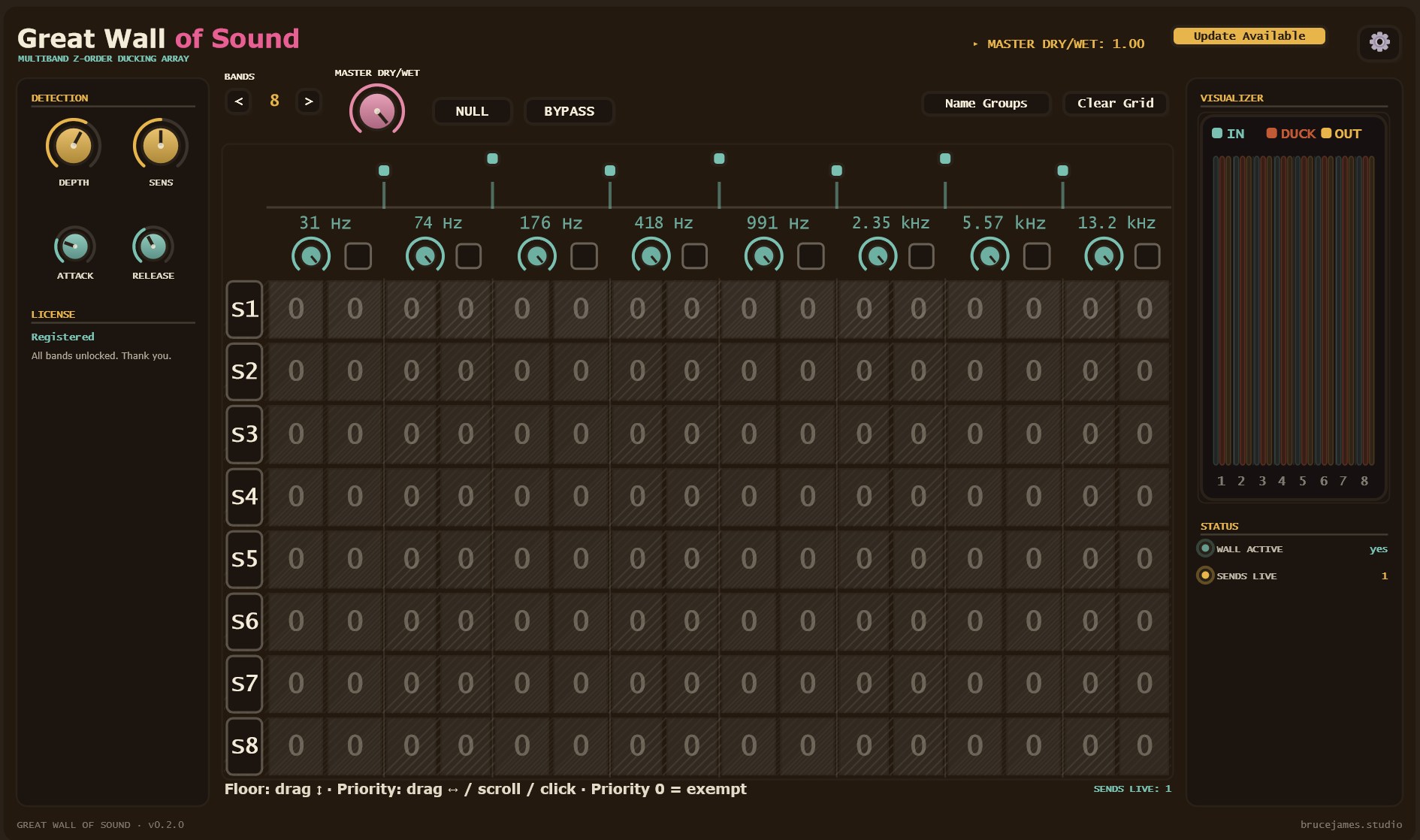
The main surface. Global controls and licensing sit on the left, the priority grid and selected-cell editor fill the center, and the live analyzer sits on the right.
The current Cell Edit panel sits directly below the grid. The following page shows that area at a readable scale and walks through every control.
1Global controlsDepth, Sensitivity, Attack and Release defaults, and current license state.
2Global controlsBands, Master Dry/Wet, Null, and Bypass.
3Project actionsName Groups, Clear Grid, update notice, and settings.
4Frequency and bandsDraggable crossover handles, per-band mix knobs, and band solos.
5Cell gridSelection-only. Click selects; Ctrl/Cmd-click or Ctrl/Cmd-drag builds a multi-cell selection.
6Cell EditShown in detail on the next page: Z Order, Gate Floor, per-cell Attack/Release, and live input, trigger, and post-duck lanes.
7Visualizer and statusPermanent In, Duck, Out lanes plus live Sum, Send, and routing indicators.
Clear Grid is complete
Clear Grid resets both the z-order and retained-level floor for every cell. Group names and Send memberships are not changed.
04B · Reference
Cell Edit: shape one slice precisely
04B
The grid is selection-only. Click a cell to bring its controls and live levels into Cell Edit, then make every cell-value change in this dedicated area.
1
TRACK 2 · BAND 3 L
Track 2 / Band 3 Left
176 Hz to 418 Hz
Click another cell to inspect it.
Ctrl/Cmd-click or Ctrl/Cmd-drag to build a multi-cell selection.
3
GATE FLOOR
65% RETAINED
6
LIVE LEVELS
DUCKED BY T1/Z8 · -6.2 dB
1Selected sliceConfirms track, band, stereo side, and frequency range. Multi-selection uses this as the lead cell.
2Z Order and SET ROWUse minus and plus for the selected cells. SET ROW copies the lead cell's Z across every visible band and both sides of its track.
3Gate FloorSets the minimum level retained after ducking. At 65%, no more than 35% can be removed.
4AttackControls how quickly this slice moves behind an aggressor. GLOBAL follows Attack Default; RESET restores that link.
5ReleaseControls how quickly this slice returns. GLOBAL follows Release Default; RESET restores that link.
6Live LevelsCompare cell input, eligible higher-Z trigger energy, and estimated post-duck level. The footer names the active aggressor.
A reliable editing sequence
- Select the target. Click one grid cell, or use Ctrl/Cmd selection for a matched edit across several cells.
- Set the hierarchy. Raise Z for the element that should win. Equal Z values never duck each other, and Z 0 is exempt.
- Protect the body. Raise Gate Floor when the target should move back but keep weight, sustain, or room tone.
- Tune while audio plays. Adjust Attack and Release, then confirm the Trigger and Post Duck lanes explain what you hear.
Cell values only change here
Dragging or scrolling over the grid cannot edit Z Order, Gate Floor, Attack, or Release. That separation keeps navigation safe and makes every sound-changing action deliberate.
05 · Reference
Interface tour: Send editor
05
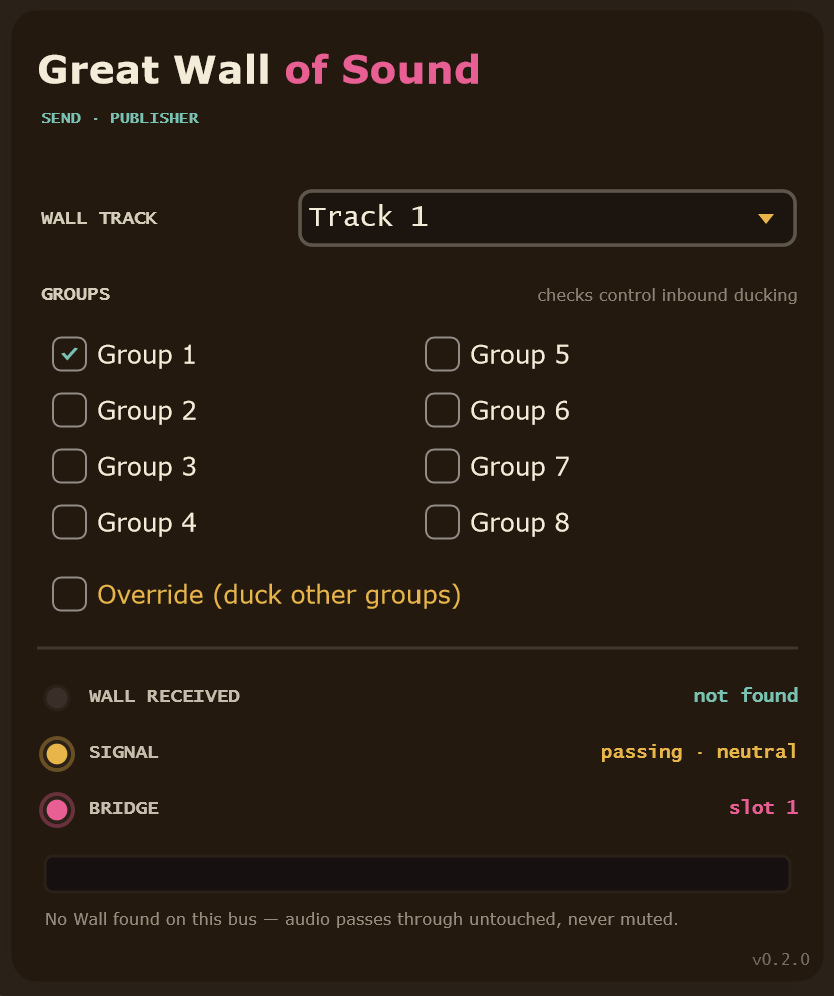
The Send panel assigns a Sum row and directional group permissions, then confirms that audio and control data are moving.
1Sum TrackMaps the Send to Track 1 through Track 8 in the Sum grid.
2Group checksSet normal inbound and outbound group membership.
3OverrideGrants outbound authority over other checked groups.
4Sum ReceivedShows whether the Sum heartbeat is current.
5Signal and BridgeShows neutral or ducking behavior and the claimed bridge slot.
6Output meterDisplays signal after the Send's duck gain.
Group names are created with Name Groups on the Sum and saved with the project. Blank names fall back to Group 1 through Group 8. Group 1 is checked by default on a new Send.
Override is one-way
If a Rhythm Send enables Override, it may duck a lower-priority Vocal Send. A normal Vocal Send still cannot duck that Rhythm Send unless the Rhythm Send also checks Vocals, or both share another checked group.
Not found?
Confirm a Sum instance exists, both plugins are the same build, and the host is processing both instances. Until a fresh Sum is detected, the Send passes delayed audio at unity without ducking.
06 · Reference
Parameter reference
06
Sum controls are listed here. Grid, Send, and group controls continue on the next page.
Left panel · Detection
| Control | Range | Behavior |
|---|
| Depth | 0 to 100% | Maximum reduction before the per-cell Floor limit is applied. |
| Sensitivity | 0 to 100% | Sets the aggressor threshold from about -12 dB to -54 dB. Higher values react to quieter signals. |
| Attack Default | 1 to 60 ms | How quickly ducking enters for cells whose Attack still reads Global. |
| Release Default | 20 to 800 ms | How quickly reduction recovers for cells whose Release still reads Global. |
Center · Global
| Control | Range | Behavior |
|---|
| Bands | 1 to 8 | Number of frequency bands the grid splits into; each band shows as an L/R column pair. |
| Global Dry/Wet | 0 to 100% | Master blend between unprocessed and fully ducked output across the whole Sum. |
| Name Groups | action | Names the eight project groups. Names appear on every Send. |
| Null | on · off | Outputs processed minus delayed input from each Send, isolating what the Sum removes. |
| Bypass | on · off | Returns every Send to dry unity and takes precedence over Null and Sum solos. |
| Clear Grid | action | Resets every cell's priority and Floor to 0. |
Center · Band strip
| Control | Range | Behavior |
|---|
| Band Dry/Wet | 0 to 100% | Scales ducking for both sides of one band, independent of the other bands. |
| Band Solo | on · off | Plays only that band's content across every track and both stereo sides. |
Right panel
| Control | Options | Behavior |
|---|
| Band analyzer | In · Duck · Out | Permanent per-band triplets for input level, strongest duck amount, and effective output. |
| Ducking | enabled · disabled | Whether this Sum's licensed/demo ducking engine is active. |
| Sends Live | 0 to 8 | How many Sum rows have a recently publishing Send. |
| Routing | ok · error | Flags duplicate Sum Tracks or unexpected audio entering the Sum. |
07 · Deep dive
The grid and frequency axis in depth
07
The grid is where priority is painted; the frequency axis decides what that priority applies to. Understanding both makes the rest of the plugin fall into place.
Reading a cell
Each cell belongs to one track, one frequency band, and one stereo side. Its number is a priority within that single slice, nowhere else. A track can hold z = 8 in the low band and z = 0 everywhere else: it dominates the bass and is completely exempt from ducking or being ducked anywhere in the rest of the spectrum.
Equal values never duck each other. Two tracks both set to 5 in the same band/side coexist untouched; use equal priority deliberately when two elements should be free to overlap.
Select first, then set Z Order
A plain click selects a cell and opens Cell Edit; it never changes the sound by surprise. Use the minus and plus steppers there to lower or raise Z Order. SET ROW copies the lead cell's Z Order across every visible band and both sides of its track. Dragging or scrolling over the grid cannot change a cell value. Priority 0 fully exempts that cell from ducking in either direction.
Setting the retained-level Gate Floor
Drag the Gate Floor bar in Cell Edit. It is the only place to change this value; Ctrl/Cmd-dragging inside the grid only builds a selection. The teal line and F value show the minimum signal the cell will retain. For example, F70 caps reduction at 30%. Floor 100% prevents audible ducking in that cell, while Floor 0% leaves the full Depth range available. Floor is not an input noise threshold.
Per-cell timing and live levels
Attack and Release initially read Global, following the defaults on the left. Drag either timing bar to create an override for the selected cell or cells; click RESET to inherit Global again. The three live lanes show the cell's own input, the eligible higher-Z trigger sum, and its post-duck level, so you can tune the response while seeing why it moves.
The frequency axis: draggable band edges
The handles running above the grid mark where one band ends and the next begins. Drag a handle left or right to reshape both bands it borders; the grid's columns re-flow live to stay aligned under the handle. At 8 bands the axis holds 16 columns' worth of edges and can get busy; that density is intentional so precise placement stays possible rather than being smoothed away.
Cluster or spread
Pack several handles tightly around a problem area (three bands crowded into the low-mids, say) or spread them evenly across the spectrum. Both are valid; the axis has no preferred layout.
Live activity in the grid
A cell that is actively ducking another track shows a red-leaning tint and an activity bar sized to the live duck amount; the grid behaves like a meter, not a static table. Soloing a track makes its cells glow with its live amplitude, so you can see exactly where in the spectrum that track is contributing.
Starting points, not rules. Watch the grid and the meters and adjust to the material.
01Kick and bass out of each other's way
Give the kick track top priority in the low band and set the bass to a lower z-order in that same band, both at 0 elsewhere. Only the low end negotiates between them; the rest of both tracks stays full.
Kick low band z 8Bass low band z 4Elsewhere z 0Depth −6 to −9 dB
02Lead vocal clears space across the whole band
Give the lead vocal the highest priority across every band it occupies, and set competing instruments (rhythm guitar, keys) a step lower in just the vocal's presence range. The vocal always wins there; everywhere else those instruments stay untouched.
Vocal z 8, all bandsCompeting tracks z 3–4 in presence band onlyAttack fast
03Auditioning one band with Band Solo
Use a band's solo checkbox to hear that band across every track and both sides. Confirm the right elements are actually landing there before you commit Priority values.
Band Solo onListen per band
04Placing bands precisely with the frequency axis
Rather than accept the default log-spaced bands, drag handles to cluster three or four edges around a specific problem (the 200–500 Hz mud zone, for instance) while leaving the rest of the spectrum in one or two wide bands.
Bands 6–8Handles clusteredGrid re-flows automatically
05Starting clean on a busy session
Use Name Groups to separate unrelated domains, such as Rhythm and Vocals. Check the appropriate names on each Send, then build priority inside each domain. Enable Override on a lead only when it should carve across those domains.
Name Groups firstNormal tracks shared namesLead Override if needed
06Preserving body with a cell Floor
After priorities work, select the ducked cell and raise its Gate Floor in Cell Edit. Use this when the target should move behind the aggressor but must retain weight, sustain, or room tone.
Priority set firstFloor 50 to 80%Watch teal line
09 · Support
FAQ and troubleshooting
09
The Send editor says "Sum Received: not found."
Confirm a GreatWallOfSound Sum instance exists, the Sum and Send are the same build, and the host is actively processing both. They do not share an audio bus. The Send passes at unity until a fresh Sum heartbeat arrives.
Nothing ducks even though the grid has values.
Confirm two rows are live, both cells have different non-zero Priorities, the rows share a checked group or the higher row has Override, the target Floor is below 100%, both Dry/Wet controls are above zero, Bypass is off, and a license or demo is active. Increase Sensitivity if the aggressor is too quiet.
Why does a Send with no groups checked stay untouched?
No checked groups means no normal inbound membership. With Override off the Send is isolated. With Override on it may duck grouped targets, but ordinary group members still cannot duck it.
Is Floor a noise gate or detector threshold?
No. Floor is the minimum post-duck level retained by one cell. Select the cell and edit Gate Floor in Cell Edit. Sensitivity controls the detector threshold.
Ducking chatters or pumps.
Select the problem cell and raise its Attack or Release to slow that slice without changing the rest of the grid. If many cells have the issue, adjust the global timing defaults or lower Sensitivity slightly so borderline levels do not keep re-triggering.
GreatWallOfSound doesn't appear in my DAW.
Confirm the DAW has rescanned plugins after installation and that the VST3 and CLAP system folders are in its scan paths. Some hosts need a manual rescan or restart. Look for GreatWallOfSound Sum and GreatWallOfSound Send; they install as two entries.
Can more than 8 Sends feed one Sum?
No. The Sum has eight independently controlled rows and every live Send needs a unique Sum Track. If two Sends select the same row, both editors show TRACK ERROR and that row stays neutral until the conflict is fixed. Use stems before the Sends when several sources need to share one priority map.
Why does the Sum show SUM INPUT ERROR?
GreatWallOfSound Sum belongs on a dedicated silent utility bus. Remove any source or bus routing into that track. Sends communicate with it through shared memory and should keep their normal audio routing.
What happens if I remove a Send mid-session?
The Sum's Sends Live count drops and that track's cells simply stop receiving live activity. Remaining tracks and their z-order values are unaffected.
Why does the Send add latency?
The Send uses 10 ms of lookahead plus a two-block safety margin so gain can lead transients reliably. Leave host delay compensation enabled.
10 · Legal
License and contact
10
License
Use of GreatWallOfSound, both the Sum and the Send, is governed by the end user license agreement included with the distribution as license.txt. Please refer to that file for the full terms. Your purchase authorizes installation under the conditions described there.
Included files
The distribution archive contains the installer helper along with readme.txt for installation notes, CHANGELOG.md for version history, and license.txt for the agreement. The readme is the canonical source for installation details.
Before you write in
Including your DAW, its version, operating-system version, plugin format, and whether the issue is with the Sum or a Send helps support resolve issues faster.
GreatWallOfSound
Windows / macOS / Linux · VST3 / CLAP / AU / AAX Native